


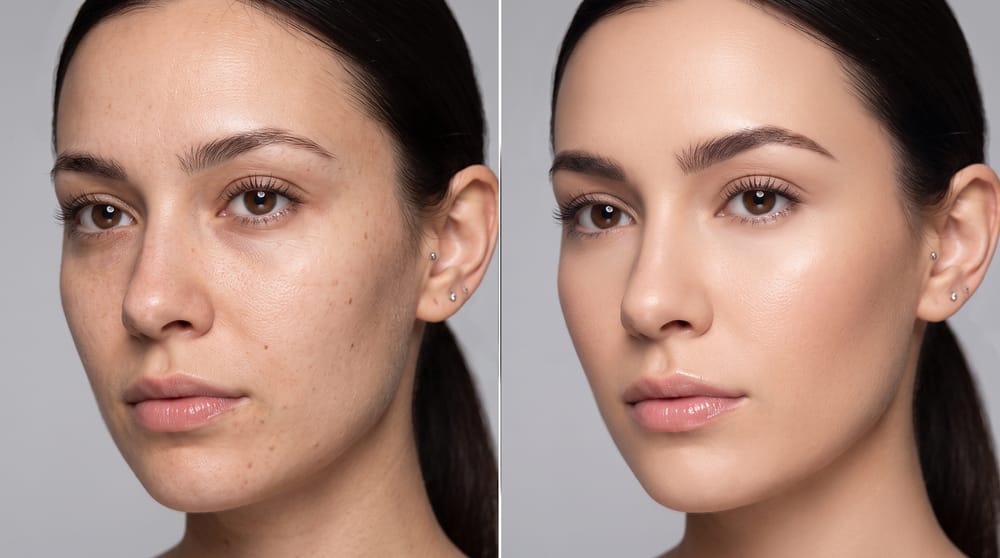
Realistic skin retouching is about restraint — remove the temporary, keep the texture. Here's how to smooth skin in photos with Facelab without crossing into plastic-looking territory.
Smooth skin with realistic texture looks professional. Unfortunately, it's easy to overdo because of the large number of options. At Facelab, we encourage you to make little changes - not full edits that make you look like another person. Here, less is more. Read more to find out how to smooth skin in photos and check our realistic face retouching techniques.
Smooth Skin Naturally in Photos with Facelab
How to edit a photo to smooth skin? It's possible with the Facelab Smooth Tool. Low intensity, around 30-40%, helps you remove minor imperfections without making your skin look plastic. Remember that your skin can look much better even before you start editing.
Here are some extra expert tips and simple tricks to help you get the absolute perfect shot every time.
Catch the Right Light
Good lighting is everything! Look for natural and soft lighting. Of course, Facelab can make your photo look better even if the weather isn't nice, but sometimes the sun is enough to look very good and no changes are needed.
Take Care of Your Health
No filter can replace a healthy glow. Remember to stay hydrated, eat clean, get enough sleep and keep up with your daily skincare routine.
Keep It Real
Use Facelab to enhance your natural beauty, not to hide it completely. A little bit of touch-up combined with great lighting and a healthy lifestyle is the secret to the question of how to smooth skin in photos.
Clean Your Lens Before Shooting
Sounds funny, but sometimes the problem is not with your skin but with a dirty camera lens. Dust and fingerprints create a blurry, foggy effect which ruins photo quality.
Choose a Simple Background
A chaotic background distracts from your face and can affect how shadows and colors land on your face. Choose a minimalistic and clean place. Then, your natural features will stand out instantly.
Step-by-Step Guide to Flawless, Realistic Skin
- Open the Facelab Smooth Tool
- Set the intensity to around 30-40% to remove minor imperfections
- Soften the shadows
- Use the Brighten Tool (helps lift the face without washing out your features)
- Retouch (remove temporary marks, spots, or blemishes)
- Use the Fix Section for asymmetry (refine eyebrow shape, adjust eye balance, or correct any camera-angle issues)
- Add a little bit of warmth – subtle warmth helps eliminate cold, unnatural tones, makes your skin look healthier, and creates a friendly, inviting vibe on your profile.
Subtle Skin Retouch
Thanks to the Facelab tool, you can remove dark spots, correct uneven tones, and retouch skin. In the app, it's easy to change skin tone regardless of discoloration, rough texture, or acne marks. The functions work across all tones and skin types. Also, the tool effortlessly removes scars and redness, making your skin glow without a plastic and over-processed look.
How to Look Your Best in a Photo?
Facelab is built with a strong idea - even the best version of the photo still should look like you. Unfortunately, overediting happens gradually. One more filter and suddenly it's hard to recognize a person. A fake look is not authentic. Over-sharpened eyes, over-brightened highlights, and excessive skin smoothing strip away your unique personality and natural charm. Remember about shoulders and neck when you add small edits. Inconsistency is another frequent mistake. Facelab helps blend edits naturally across the whole portrait. Thanks to this, the finished photo does not look like a face pasted on an unedited photo. Test the tool for free - without hidden costs and watermarks. Ready to try it? Download the app and make your first natural looking edits!
Frequently Asked Questions
What are subtle skin retouching tips?
What are realistic face retouching techniques?
How to keep your skin looking realistic?
What does Facelab offer for skin editing?
Is the Facelab tool for free?

More in Beauty
View all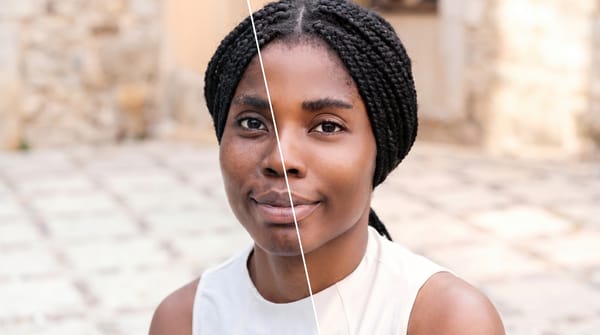
Face Retouching vs. Full Makeover: When to Use Each
Face retouching can be invisible when the work is done right. A full makeover can create a complete look.

10 Hairstyle Changes You Can Try in Photos with AI
Facelab's AI hair editor lets you try virtual hairstyles, including specific cuts, colors, and textures, directly on your photo before you visit a salon.