

Someone looked away, someone blinked, someone hates their smile. Here's how to edit group photos naturally with Facelab so everyone looks great — without a reshoot.
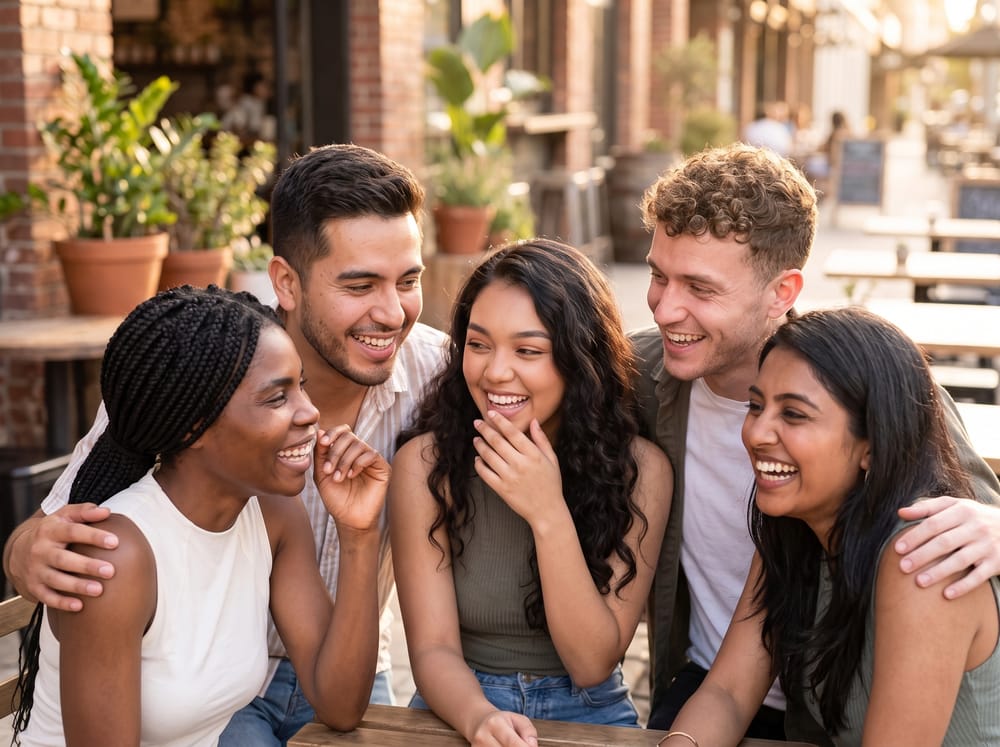
It's hard to make everyone like how they look in photos. Someone looked away, and someone blinked. Someone doesn't like their pose, while another hates their smile. The question is, how do you edit group photos naturally so that everyone looks great? With Facelab, it's possible without taking hundreds of new photos. Let's explore how to do it.
What's the Main Problem in Group Photo Editing?
A lot of apps are designed around a single face. The problem is that real memories are built in groups: during holidays, vacations, weddings, or birthdays. Unfortunately, it's very hard to make a perfect photo that everyone likes. Most popular apps only allow editing for the person nearest to the camera. When this person is edited, suddenly other people's expressions become less readable and the whole photo looks unnatural.
How Does FaceLab Work on Group Photos?
FaceLab uses AI on group photos to detect multiple faces in a single image. This option also lets you apply enhancements to each person individually. That's why you can retouch one face without affecting the others. The intelligent face-detection algorithm maps distinct focal points for every individual. That's why adjustments to one person's features never distort the person standing right next to them.
Make Every Face Shine in Group Photos with Facelab
Face retouching, when done right, is invisible and can make everyone look stunning in a group photo. Here are a few tips for a perfect face without changing your look:
- Add subtle edits - try to keep low intensity (around 30-40%) and boost lifts gently.
- Retouch carefully - remove temporary marks, blemishes, or spots.
- Smooth your skin - choose light settings and pay attention to whether the texture still looks natural.
- Use the fix section - that's a great option for asymmetry; you can adjust eye balance, refine eyebrow shapes, and correct camera angle issues.
Correct Lighting and Shadows Naturally
The Adjust section on Facelab helps you correct lighting and shadows. Thanks to this option, you can increase the brightness and add warmth. A lot of cameras unfortunately run slightly cool, but the good news is that warmth adjustments can make the skin look more natural and lively on a screen.
Tips for Balancing Multiple Faces in One Photo
For balancing multiple faces in one photo you can use the fix section. Usually on group photos people on the edges get hit with uneven shadows. With Facelab, lifting those dark spots is easy without blowing out the highlights.
Another common issue is that a wide-angle phone lens tends to slightly stretch or distort the faces of people standing at the far left or right. To fix this you can choose the shape section and use the precise contouring tools to bring natural proportions to other people's faces.
Also a great tip is to blur the background. If anything distracts from your team on the image you can delete that using the removal tool. What's more? Depending on where you want to publish your photo: on Instagram, LinkedIn or a website, the tool resizes the image so you keep the quality.
How to Keep Everyone Looking Realistic
Realistic group retouching relies on understanding the difference between photo editing and overediting. Small retouching means little changes that help make everyone the best versions of themselves, not completely different people. Read more about AI tools for improving group pictures on Facelab!
FAQ
How to edit group photos naturally with Facelab?
How to make every face shine in a group photo?
How to correct lighting and shadows in a group photo?
Can I resize my group photo?