


Your LinkedIn photo is your first impression before anyone reads a word of your profile. Here's how to make it look professional without losing the real you.
A LinkedIn profile picture is your business card. People who click on your profile will judge you by your appearance because it catches the eye the most. It can make you look trustworthy, like a good partner for collaboration, or not. So it's extremely important to look professional. In this article, we show you the best LinkedIn profile photo tips.
Professional LinkedIn Profile Photo Tips
If you want to have a photo that looks very professional, here are LinkedIn profile photo tips:
Pick Your Real Photo
Make sure that your LinkedIn profile is recent. Try to put a photo which reflects you on a daily basis (your makeup, hair, glasses). If you make any changes, try to make subtle edits, unless you prefer to add your avatar, which is also a great option. If so, on Facelab you can create your own character, but remember to choose the style that matches your professional goals and tells a story about you, e.g., what you do or what kind of hobbies you have.
Use a High-Quality Picture
The optimal size for a LinkedIn profile is 400×400 pixels. The minimum image size is 268 (w) x 268 (h) pixels. You will get the best results when you choose a high-resolution JPEG instead of a PNG file. At Facelab, you can correct camera angle issues and add subtle warmth to enhance the photo's mood.
Keep Your Face as the Main Focus of the Image
Ideally, it should take up at least 60% of the frame. By clicking on your profile picture, people want to know what you look like, so it's important to give them a chance to check it. To make your face stand out even more, use soft, natural lighting and avoid distracting backdrops.
Avoid Group Photos on Your Profile Picture
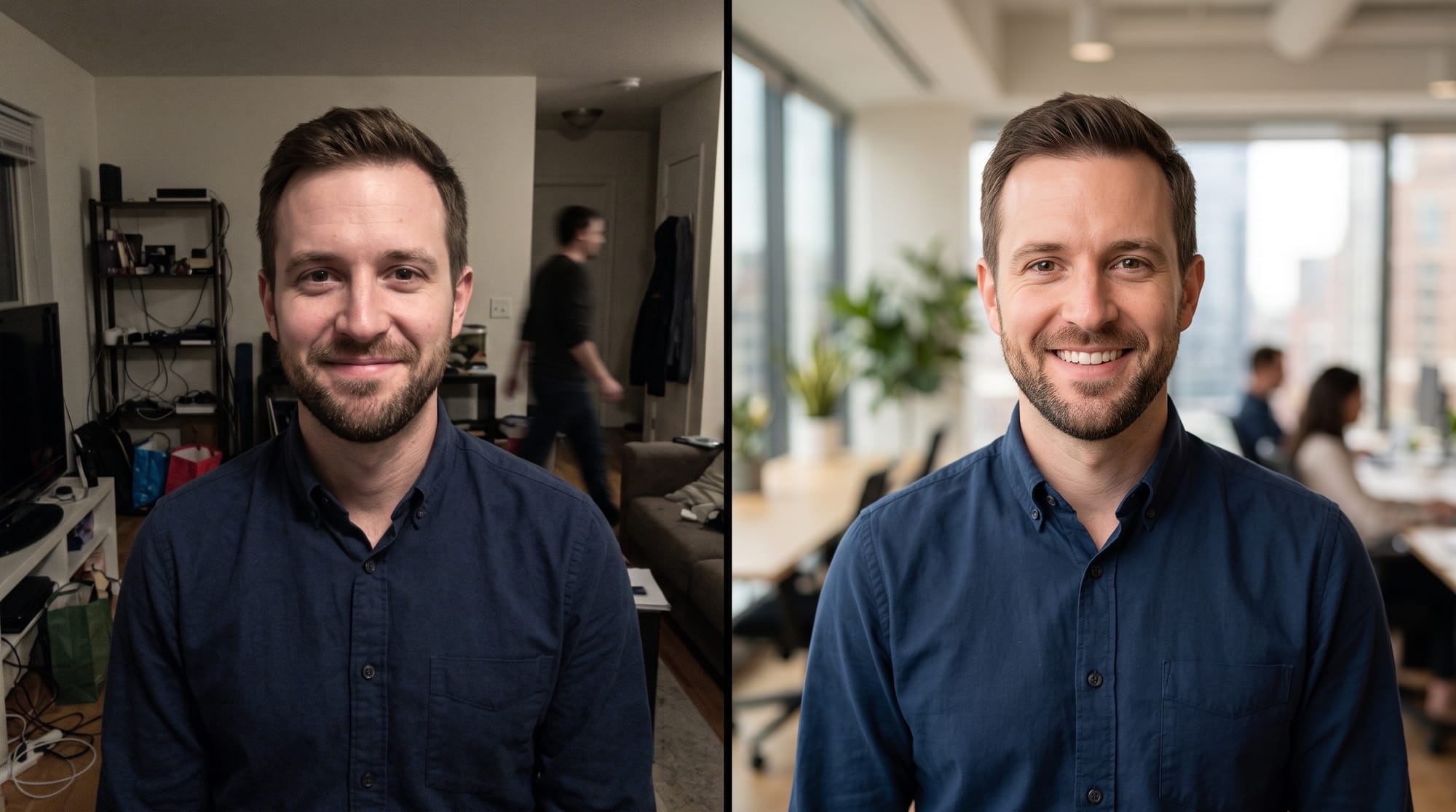
Your profile picture should show you. When you upload a group photo, people who visit your LinkedIn profile might be unsure which person you are. If you don't have the time or money for a professional photographer, you can use the Facelab background remover and replace it with a clean, neutral one.
Ask Someone to Take a Picture of You or Use a Tripod
You don't need to visit a professional, but usually, the best photos come out when someone else takes them. Front cameras lower the quality of images. Of course, in our tool, you can correct this, but the effect will be much better when you use the back one.
Take Care of Your Expression
A natural expression can do more good for your image than any edits. Smiling can help you look more approachable. A study based on the analysis of 60,000 ratings of perceived competence, likability, and influence for 800 profile photos showed that people see us as more likeable, influential, and competent when we smile in the photo.
Delete Distracting Backgrounds
For a LinkedIn profile, we don't want anything to distract from your face. If you took a photo and realized that the background is messy – don't worry. Facelab can remove it, so you don't need to spend another hour trying to capture the perfect shot.
Match Your Outfit to Your Industry
Wear what you'd normally wear to work. If your basic outfit is a jeans and T-shirt combo, that's totally fine. You don't need to force yourself into a full suit and tie if that's not who you are. A formal suit works great if you are in finance or law, but if you work in tech or the creative industries, it might actually look too stiff.
Take Care of Soft and Natural Lighting
Lighting can completely change the look, hide imperfections, and soften under-eye shadows. Using a camera flash makes your skin look shinier. When you take a photo, use the light from a nearby window and avoid standing with your back to it.
Resizing the Image
If you need to resize an image without distortion and losing quality, Facelab will help you. As we know, not only LinkedIn but all social media platforms demand specific image dimensions for their content. You can resize your images for Instagram posts, stories, reels, YouTube thumbnails, and more. Thanks to this, your photo won't look stretched or squashed.
Frequently Asked Questions
What are LinkedIn profile photo tips?
What size should a LinkedIn profile picture be?
Can I resize an image for social media posts?